
Does your small business have a LinkedIn company page where you and your team share updates? In this article, we’ll share nine tips to make your brand even more visible than it is now. Give them a try right away!
1. Increase the number of followers on your page
There are several ways to increase the number of followers on your LinkedIn page. Posting high-quality content regularly is one way, as is including a link to your page on your various communication channels (website, newsletters, email signatures, brochures, etc.).
But there's a very effective, yet little-known, way to boost your follower count: the "Invite Connections" feature in your LinkedIn page's admin view.
To open the login window, click the "Administration Tools" link in the upper-right corner of the page.
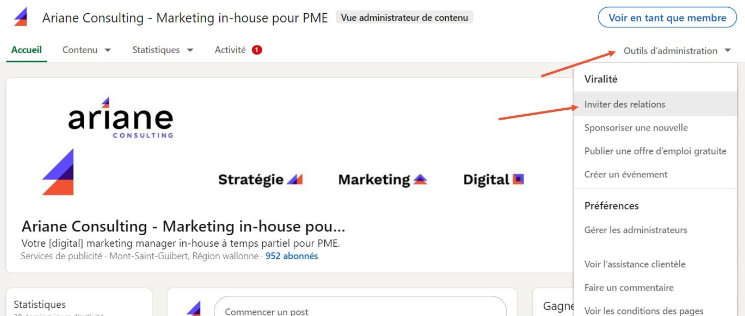
Next, select “Invite contacts.”
All you have to do now is choose the people you want to invite. They will be notified of the invitation. Then, it’s up to them to decide whether or not to join your subscriber list.
As an administrator, you have a monthly allocation of credits to invite contacts to subscribe to your page. Each invitation “costs” one free credit. This credit is refunded if the invitation is accepted.
This is a great way to grow your audience of people you know—who are therefore more likely to respond positively.
Quick tip: Regularly ask your sales representatives to invite their clients, prospects, and other “strategic” contacts to help expand your audience reach. To do this, your employees must be designated as page administrators. We recommend granting permission only for the duration of the task, for example during a team meeting, and revoking it immediately afterward. This will minimize any risk of mishandling.
2. Drive more traffic to your website
Did you notice? LinkedIn company pages have a customizable button to the right of the blue "Follow" button.
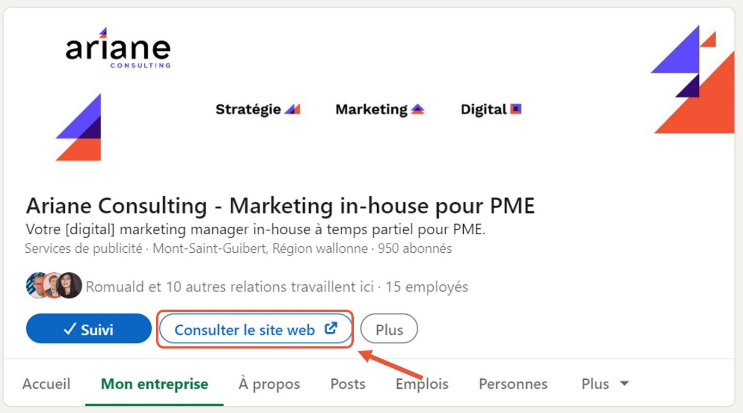
This element directs visitors to your website or any other link of your choice.
Here are five button labels to choose from: Contact Us, Learn More, Sign Up, Register, and Visit the Website. Choose the label that best suits your landing page.
Here are a few use cases to help you make your decision:
- Choose “Visit the website” to direct the visitor to your site’s home page
- Use "Learn More" to direct the visitor to a product page
- Select "Contact Us" if you would like to feature your contact form
- Select “Register” if you are participating in a promotional campaign for a webinar or an invitation-only event
- Select “Sign Up” to promote the registration page for a members-only area or SaaS software
3. Make your posts visible to the entire network
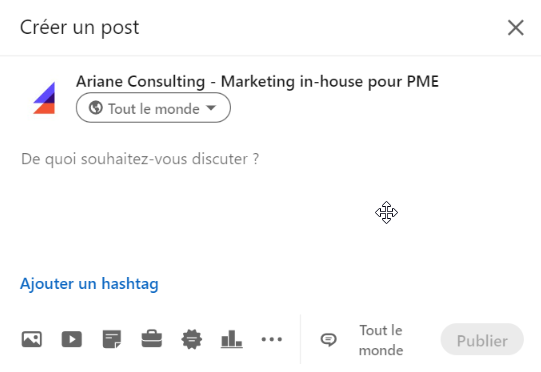
By default, the posts you publish can be viewed by everyone. This is obviously a great thing, since your goal as a business is to be visible.
However, the reach of your post may be limited.
To check this, click “Start a Post.” A window will open. The “Everyone” button should appear below your page’s name. If it doesn’t, click the “Targeted Audience” button to switch to the “Everyone” audience. Only target your audience if it’s particularly important to do so. Otherwise, you risk missing out on a large number of views.
4. Identify connections and take advantage of their network
Another very useful feature for increasing your post’s reach: mentions. When you type an at sign (@) in your message, LinkedIn prompts you to mention people who may or may not be part of your network. This feature is one of LinkedIn’s most powerful: not only is the person notified of the mention and invited to respond to your post, but you also make your post visible to their network.
It's also possible to tag LinkedIn users in a photo. This is a useful tip for group photos, for example, so that the network of tagged contacts can also see the post in their news feed.
5. Appear to people who follow a hashtag
On LinkedIn, using hashtags has two benefits: it makes it easier to search for areas of expertise or keywords in the internal search engine, and it helps you appear more prominently in the notifications of people who follow the hashtags you’re targeting.
To add a hashtag, click the blue "Add a hashtag" link at the bottom of the post window. You can also type in hashtags manually.
It is recommended to use 3 to 5 per post, no more.
Running out of ideas? Use the LinkedIn Hashtag Generator for popular suggestions tailored to your language or geographic region. Also, be sure to use your company’s hashtag (#yournamecompany) to provide a quick link to all of your posts.
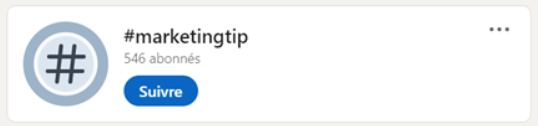
How popular is the hashtag you mentioned? To check, copy the following URL into your browser, replace "marketingtip" with the term you're searching for, and press Enter.
https://www.linkedin.com/feed/hashtag/marketingtip/
6. Video: The Users’ (and the Algorithm’s) Favorite
Just like users, the LinkedIn algorithm loves videos…As long as they’re hosted on its platform! So don’t hesitate to upload your videos from your computer using the Video button. LinkedIn will give them more “weight” than content stored on third-party sites (such as YouTube, to name just one example) because watching them requires leaving the platform (at least temporarily).
7. Engage Your Audience with Polls
Have you always dreamed of polling your followers on a topic that’s important to you? LinkedIn makes it possible with its “Create a Poll” feature. Polls are a great way to find out what your community thinks about certain aspects of your product, for example.
They offer up to four answer choices.
You'll also need to set a voting period. We recommend sticking with the standard duration, which is one week. It's rare for a post to "stay active" for more than five to seven days.
Good to know: Respondents will receive a notification when the survey closes. Those who are curious can check out the (anonymized) results. Feel free to use them in a new post.
A quick tip: On LinkedIn, just as in traditional media, polls are particularly effective at generating engagement on “divisive” topics, where the discussion tends to continue in the comments section. But be sure to use this tactic with caution and sparingly: your brand’s reputation is on the line with every post you make!
8. Celebrate your victories and company events
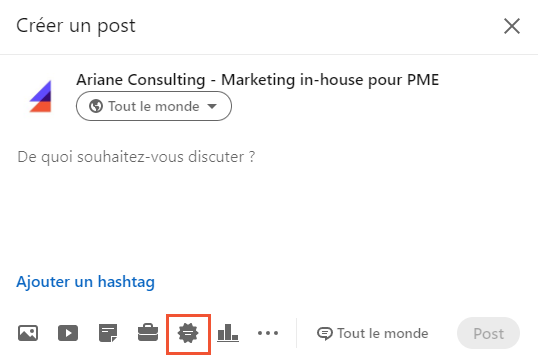
LinkedIn offers a “read-made” template for celebrating various company events, such as the arrival of a new employee, the launch of a project, or an employee’s promotion. You’ll find this option in the post creation area.
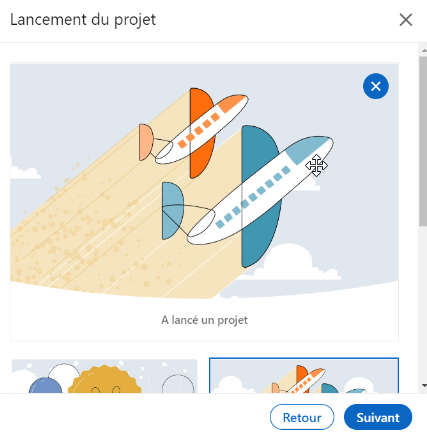
To do this, simply choose the occasion you want to celebrate, select the colleague(s) involved, add a photo as a link, and write a few lines that will really hit the mark. You’ll find this option in the post creation window in the bottom menu.
9. Generate leads with a form embedded on your page
LinkedIn has recently made it possible to enable lead generation forms on Company Pages.
To add one to your space, go to the “Statistics” tab in your admin view. Then click the “Prospects” line in the drop-down menu.
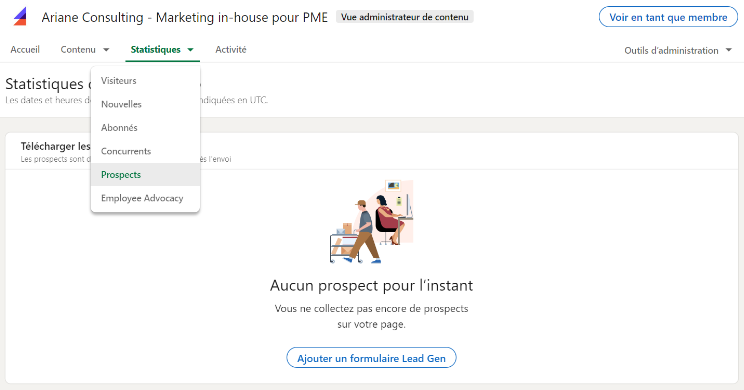
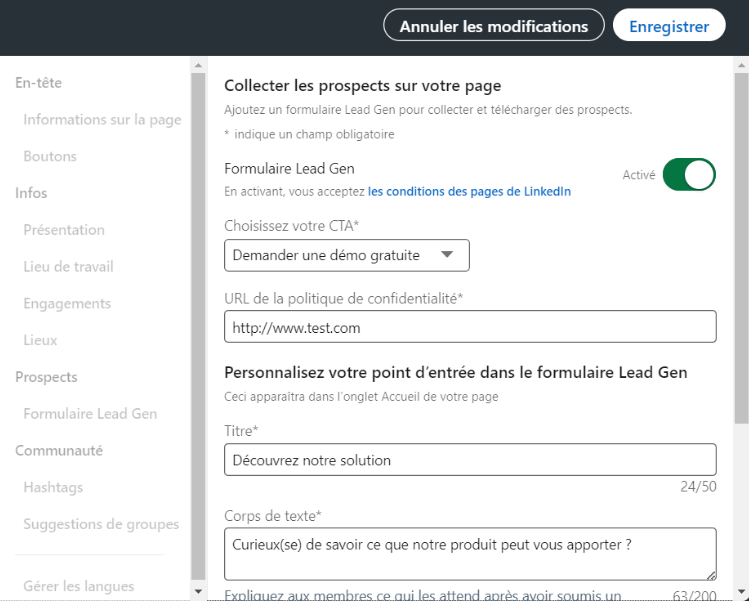
Click the “Add a Lead Gen Form” button and fill in the required fields.
The form will appear on the home screen of your Business page, at the very bottom of the information.
Want to get the most out of your LinkedIn presence, boost your brand’s visibility there, and turn your posts into lead-generating machines? Contact us, we’d love to help you ????